HELP AND SUPPORT
Cloud Help Desk
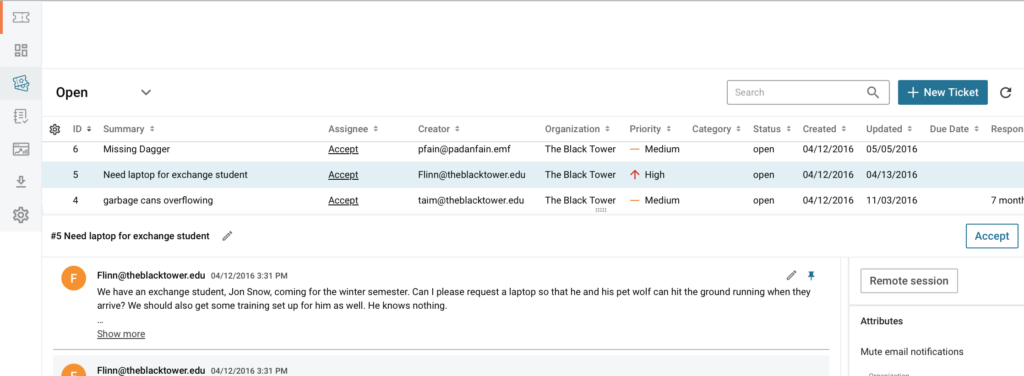
Let the Cloud Help Desk help you easily manage your daily projects and user requests – all in one spot! Just like your other SaaS solutions, we’ll host it for you and take care of backups and maintenance, freeing you up to focus on your users and their issues. The best part? Instant setup and it’s free! What could be simpler?
What do you want to read about?
Navigating and working your help desk
Using ticket rules & tickets anywhere commands
System Requirements
Because the Cloud Help Desk is a SaaS solution, we take care of everything for you! Just BYOB (bring your own browser)! The below applies to both IT pros who administer the Cloud Help Desk and end-users accessing the User Portal.
These modern browsers are supported (latest stable version):
- Google Chrome
- Firefox
- Microsoft Edge
The Cloud Help Desk may also work well with:
- macOS and iOS Safari
- Opera
- IE6 (just kidding)
For our advanced reporting integration with Power BI, use the cloud version or the latest desktop-version of
Power BI (read more).
Frequently Asked Questions
How does Spiceworks ensure the security of my data?
You can read more about how Spiceworks handles security here .
Does it meet HIPAA compliance requirements?
No. The Spiceworks Cloud Help Desk is not an approved medical system or service nor will Spiceworks enter into a HIPAA business associate agreement. The application can be used as a help desk service but no protected health information should ever be included or stored in Cloud Help Desk. While Spiceworks actively adheres to security best practices when handling sensitive data (such as Personal Data), our users need to follow common-sense practices when using our service. Make sure to check out our Security Center for more details and information.
I’ve heard references to a legacy Desktop application; what is that?
This refers to the on-prem Inventory and Help Desk application that Spiceworks ended development on back in 2018. You can learn more about that here.
Does it have comprehensive report options as the legacy Desktop application?
Last year we completed the first round of a two-part approach to Reporting in the Cloud Help Desk. We have provided the web-based “built-in” Reports tab where you can use some basic controls to filter, view, and even export a list of tickets. We also released an updated version of our integration with Power BI, which allows you to do deep-dive reporting on your full Cloud Help Desk dataset. Together these two reporting options in the Cloud Help Desk mirror both the basic and advanced reporting features available in the legacy Desktop app.
Does it have the same functionality as the legacy Desktop application?
Cloud Help Desk has many of the same features that were provided in the legacy on-prem Help Desk (“Spiceworks Desktop”). While we plan to continue adding highly requested features to the CHD in the future, the level of user customization in the legacy Desktop application is not something we are looking to fully reproduce in the Cloud Help Desk.
Will additional access roles be added?
It is one of the more popular requests we’ve seen. We keep tabs on the Feature Requests and work on those that seem to be in high demand, so make sure to vote for the features you feel will help you, your team, and your users.
Can I use a different email address?
Without any kind of configuration, you can use any name in the email address as long as you keep the @your-org.on.spiceworks.com part the same. So you could use help@, support@, etc. If you want to use a different domain, you’ll need to set up some email forwarding .
Why am I not receiving tickets after setting up a custom email address?
If you’ve set up email forwarding to use your own email address for your help desk, but you’re not receiving tickets check the steps here for help.
I'm trying to add admins or techs, but they aren't receiving the email. How do I get them access?
Well, if you want to figure out why they aren’t receiving the invitation email, email [email protected]. If you just want a workaround that will get them in and able to work, simply have them create a Spiceworks Community account with the same email address that you invited. Now they should be able to log in to your cloud help desk. Please note that not any Spiceworks Community account can log in to any cloud help desk. You have to add the email address to your users table in the settings of your cloud help desk.
Can I change the default footer in notification emails?
Yes! Check out this doc for more details.
Can I reply directly to email notifications?
Yes! The body of your reply will become a comment on the ticket. You can even use Tickets Anywhere commands to perform actions on your tickets on the fly.
Are there any keyboard shortcuts?
There sure are! J or N will move you down to the next ticket and K or P will move you up to the previous ticket.
Can I import my tickets from the Desktop On-Prem edition?
With Spiceworks Desktop 7.5 (On-Prem edition) and later, you can export your tickets for the Cloud edition .
What’s the difference between an Admin and a Tech?
Admins see activity for the entire help desk on the Activity page, while Techs see activity for their own tickets (and any tickets they are cc’d on). Admins see a reporting dashboard for the entire help desk on the Reports page and Techs see a reporting dashboard of their own statistics. Plus, Admins can get to the Settings page to add new Ticket Categories and Custom Attributes.
How can I request a new feature?
Just visit the Feature Request group in the Community to submit your ideas and spice up your favorites.
How do I add my end-users?
You don’t need to. End users are added automatically when they submit tickets or log in to the user portal. You can also set up Active Directory to have your users use their AD credentials to sign in to the portal.
How do I delete organizations?
Click Settings (top right of the screen) and choose the organization you want to delete from the left side of the screen. Select “General” and you’ll see a “Delete Organization” option in the middle pane.
How do I cancel my cloud help desk account?
Email [email protected] to do this.
What are the size limits for attachments?
Email attachments are limited to 10MB. User Portal attachments don’t have a hard limit, but excessively large files may fail.
What are the differences between Guest User Allowed and Authorization Required User Portal authentication options?
You can find more information on User Portal authentication here , including frequently asked questions about troubleshooting end user login problems.
Can anyone at Spiceworks (the company) read my tickets or otherwise see my help desk?
Here are some details around our data privacy policies and guidelines that are specific to the Cloud Help Desk (CHD):
When you access the CHD the communication between your browser and the CHD application uses SSL (HTTPS) to encrypt traffic. The CHD stores your ticket and user information securely (more details here ), but the data is not stored in an encrypted format. Because the information is not “encrypted at rest” the Spiceworks team has access to information related to your individual account, including information in your help desk tickets. Note that this type of access is typically only used at your request (ex. when you open a support case because you need help with CHD configuration, or to help us debug the CHD service), and this level of access is limited to specific trusted technical groups (like support and dev/ops teams) at Spiceworks.
For this reason (because the information in the CHD is not readable only by you), we do not recommend storing sensitive information in the CHD, including things like financial or payment information, HIPAA-protected patient information, or information that would personally identify protected individuals (like children).
The CHD application is designed to be used by IT professionals as a help desk for internal IT issue tracking and resolution.
Please let us know if you have any further questions. We’re happy to help in any way we can.
Does Spiceworks use my Cloud Help Desk ticket information for advertising or marketing purposes?
We do analyze anonymized Cloud Help Desk (CHD) information in an effort to get smarter about the issues our users are facing – this information is not linked to any person and does not include any personally identifiable information. We certainly understand that sensitive business information may be included in tickets and we do not use that information in any way or share it with any third parties. Please let us know if you have any further questions. We’re happy to help in any way we can.
What countries is Cloud Help Desk available in?
In line with U.S. and EU compliance requirements, Spiceworks is unable to provide services to users located in certain countries subject to government sanctions or restrictions. These include Cuba, North Korea, Syria, Iran, Russia, and Belarus.
Multi Factor Authentication (MFA) Frequently Asked Questions
General
What options are there for MFA?
You can configure your CHD account to use either TOTP using an authenticator app or OTP via email.
Can we enable MFA on an individual basis?
No, MFA can only be enabled or disabled at the account level for all Employees associated with that account.
Can we use MFA only for certain roles (e.g., admins but not techs)?
No, MFA is applied at the account level and affects all Employees under the Employee Administration Setting.
Can we disable MFA?
Yes, if you prefer not to use MFA you can disable it for your account. However we do not recommend this as MFA provides an extra level of account security.
Does this impact our End Users?
No, MFA only applies to Employee Accounts (owner admin, tech, manager roles) added under the Employee Administration Setting.
How often will I be prompted for MFA?
You will be required to enter an MFA code each time you log in. Currently, you are required to log in every 7 days on each device / browser you use, unless you log yourself out.
What happens if I enter the code incorrectly too many times?
If you enter the code incorrectly 3 times, your account will be locked for security reasons. You can unlock your account by resetting your password.
I am using the App and I do not get prompted for MFA
At this time MFA is not enabled for users who are using the Spiceworks Cloud Help Desk iOS or Android Apps.
I am using Power BI and I do not get prompted for MFA
At this time when you connect Power BI to your Cloud Help Desk account you are not prompted for MFA.
Email OTP
What are the email details so that I can add this to our email whitelist ?
Subject: [Spiceworks MFA] Your requested verification code
Sender:[email protected]
What happens if an Employee loses access to their email?
If an Employee cannot access their registered email, they will not be able to receive the MFA verification code. In this case, the user will need to update their email address via https://accounts.spiceworks.com/email/change
How can I adjust Mimecast settings to avoid greylisting?
Mimecast applies a ‘Greylisting’ policy to all inbound mail. When a new sender is detected, the mail is deferred, and when the sender’s email server retries to send, Mimecast evaluates and delivers the message. After a couple of these emails are accepted, it should just work normally.
Mimecast users can pre-emptively create a new Greylist policy to bypass this ruling for specific email addresses (@txmail.spiceworks.com) or based on a group like ‘Permitted Senders’ that many Mimecast users may already have in place to allow regular contacts with high spam confidence ratings to receive mail. Mimecast spam filter and greylist filters don’t talk to each other and need to be configured separately. More on that here.
TOTP
What is an authenticator app?
An authenticator app is a mobile application that generates a Time-based One-Time Password (TOTP), a unique six-digit code that changes every 30 to 60 seconds.
Which authenticator apps work with the TOTP option?
We have tested it with Google Authenticator, Microsoft Authenticator, Authy, and Okta Verify, but any authenticator app that supports TOTP can be used.
How do I set up my authenticator app?
You have 2 options for setup once TOTP has been set as the MFA type for the CHD account.
-
On the next login, if a user has not set up their authenticator app, they will be prompted to do so. The user cannot skip this step at this time.
-
Alternatively, a logged-in user can proactively set up their authenticator app by selecting “Set up TOTP authentication” from the dropdown menu on the right-hand side.
What are backup codes, and why are they important?
Backup codes are a set of single-use codes provided to you when you first set up your authenticator app. They are your safety net. If you lose your device, it gets damaged, or you can’t access your authenticator app, you can use one of these codes to log in and regain access to your account.
How should I store my backup codes?
You should write them down or print them out and store them in a secure, physical location, like a locked safe or a secure document folder. Do not store them on your computer or phone, as this could defeat the purpose of having them as a backup.
What should I do if my authenticator app code doesn't work?
This is usually caused by Time Skew, which is a slight difference between the time on your phone and our servers. To fix this, ensure your phone’s time is set to “automatic” or “sync with network time.” You can also try re-entering the code once more before the next one is generated.
Alternatively, you can use a backup code or request a one-time code via email.
What if I lose my backup codes or run out of backup codes?
If you have already successfully set up your authenticator app and lose your backup codes, you will need to reset your TOTP and then set it up again.
As an admin, how can I see who has and hasn’t set up their authenticator app?
CHD admins can see who has configured their authenticator apps by
-
Go to Settings → Employee administration
-
Users who have configured their authenticator app will have an icon next to their role
What happens if a user loses access to their authenticator app or gets a new device?
CHD admins can reset the TOTP configuration for a user by
-
Go to Settings → Employee administration
-
Click edit for the required Employee
-
Click Reset TOTP
How can I reset my authenticator app, as I have a new device?
If you are not an admin, you will need to request that an admin reset your TOTP configuration for you. For security reasons, our support team is not able to do this for you.
You can use a backup code or request a one-time code to help you log in until it has been reset.
Premium Plan Frequently Asked Questions
Plans & Upgrades
What are the key differences between the Core and Premium plans?
The Core plan offers a robust, ad-supported ticketing solution at no cost.
The Premium plan is a paid platform that provides users with an ad-free experience and includes enhanced features, such as bulk actions and task lists.
For a full comparison of features, see https://www.spiceworks.com/free-cloud-help-desk-software/
What are the benefits of upgrading to a Premium plan?
Upgrading provides several advantages, such as:
- Ad-free experience: Enjoy a clean, distraction-free interface without ads.
- Access to additional Premium plan features, including repeatable tasklists, bulk actions and live chat with our technical support team.
How do I upgrade to the Premium plan?
Upgrading is simple:
- Go to Settings → Billing in your Spiceworks Cloud Help Desk account.
- Click the required “Upgrade” button based on whether you want to pay monthly or annually.
- Enter your company information.
- Enter your payment information securely.
- Review your subscription amount and confirm the payment.
What happens if I don’t upgrade?
If your Cloud Help Desk account has five (5) or fewer active employee seats, you can continue using the Core plan.
If your account has six (6) or more active employee seats and you have not upgraded, the following restrictions will apply:
- Account owners or admins will be able to access only the Billing and Employee Administration pages.
- Employees with Tech or Manager roles will lose access to the account.
- End users will no longer be able to submit tickets through the User Portal or email.
- Your support email address will become inactive.
If you have a unique situation or need help transitioning, use the following link to contact us.
Account Changes & Data Management
Who can manage billing?
Only users with owner/admin roles can manage billing.
How do I know how many employees I have paid for in the current billing cycle?
In the Billing and Employee Management Settings pages, you can view the number of seats you have paid for in the current billing cycle.
If some employees have been deactivated, this number may differ from the current total of active employees.
What if I remove an employee in the middle of my billing cycle?
When you remove an employee in the middle of the billing cycle, you will have an unused Premium seat. At the beginning of the next billing cycle, you will not be charged for that employee.
What if I add an employee in the middle of my billing cycle?
When you add a new employee during the current billing cycle, you will need to pay the additional cost for that employee until the end of the billing cycle. However, this requirement is waived if you have deactivated another employee during the same billing cycle.
Can I downgrade from a Premium plan to the Core plan?
Yes, you can downgrade. Here’s how:
- Go to Settings → Billing in your Spiceworks Cloud Help Desk account.
- Click the “Go back to Core Plan” link at the bottom of the page.
- Review the information that appears in the modal, outlining the features you’ll lose.
- Click the “Cancel subscription” button to downgrade. At the end of your current billing cycle, you will be returned to the Core plan, and no further payments will be made.
What happens to my data if I downgrade to the Core plan?
Your data remains intact, but you will lose access to the Premium plan features.
Payments & Security
Can I use other payment methods to upgrade to Premium?
Yes. If you prefer to pay by ACH, wire transfer, or check, we can provide an invoice with 30-day payment terms for the Annual Premium Plan.
Your Cloud Help Desk account will be upgraded as of the invoice date.
To request an invoice, fill out the form here. Be sure to select the invoice option.
What system are you using for processing payments?
Spiceworks is using Stripe to process payments.
Does Spiceworks have access to my credit card data?
No, your credit card information is securely stored by Stripe. Spiceworks employees cannot access your credit card details and will never ask you to provide them directly.
How do I change the credit card I used for payments?
To change the credit card used for payment, follow these three steps:
- Go to Settings → Billing in your Spiceworks Cloud Help Desk account.
- Click “Add Credit Card” and ensure the “Set this card as default” option is set to true.
- Once you have added a new card, you can delete the old card if you wish.
How do I get an invoice for my finance team?
To obtain a copy of your paid invoice/receipt for your finance team, follow these steps:
- Go to Settings → Billing in your Spiceworks Cloud Help Desk account.
- Click on the download link for the required invoice.
What happens if my credit card payment fails?
If the automated monthly or annual payment fails, there are 3 automatic retries. The first is after 1 day, again after another 3 days, and a final attempt after another 3 days.
As long as the card issue is resolved within that window, the retry will take care of everything.
Pricing & Billing
How much does the Premium plan cost?
The Premium plan offers a cost-effective per-employee pricing model.
The Premium plan costs US$6 per employee per month when paid monthly or US$5 per employee per month when paid annually.
You only pay for the number of seats shown on the employee administration page (owner, admin, tech, or manager roles), making the plan scalable and affordable for teams of any size.
End users who submit tickets are not charged, keeping the plan affordable even as your team grows.
Can I pay annual rather than monthly?
Yes, you can choose to pay for the Premium plan either monthly or annually.
Monthly payments are made by credit card. Annual payments cover the entire year and can be made via credit card or invoice.
I need a quote first before I can upgrade, how do I get one?
To request a quote, please fill out the form here. Our team will send your quote within 3-5 business days.
I teach using Spiceworks, is there a discount/free premium option?
We’re glad to support education for the next generation of IT professionals. Fill out the form here to get started.
Taxes & Legal Forms
My company is tax-exempt and located in the U.S., but I don’t see a tax-exempt option when upgrading my Cloud Help Desk account.
At this time, U.S. sales tax exemptions are processed manually internally.
- Go to Settings → Billing
- Add your customer information such as: Company Name and Address by clicking ‘Add Customer Information’ or Edit Customer Information
- To upload your Tax Exemption certificate, fill out the following form.
We will process your request and confirm via your support ticket once the tax exemption has been applied. Once your support ticket is updated, complete the following steps
- Return to Settings → Billing, click Upgrade
- Enter your payment information securely.
- Review your subscription amount and confirm the payment.
My company is located outside of the US and is Tax / VAT registered. How do I enter my registration number during checkout, as this is a B2B sale?
- Go to Settings → Billing in your Spiceworks Cloud Help Desk account.
- Click the required “Upgrade” button based on whether you want to pay monthly or annually.
- Enter your company information including the Tax / VAT Type and Tax / VAT number. If your VAT Number includes a country prefix eg GB ensure that you also include this.
- Enter your credit card details
- Review your subscription amount and confirm the payment.
- Your VAT number will be included on your invoices
I need Spiceworks W-9 form where I can I get that form?
Make the request here and we’ll get one emailed to you.


