You have a plan for Windows 10 end-of-life, right?

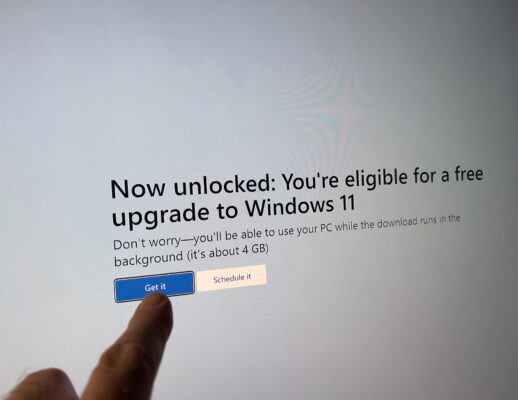
Want to hear something scary? By IT asset management platform provider Lansweeper‘s count, for the first time as of July 7, 2025, more businesses are using Windows 11 than Windows 10. What’s frightening about that? The Windows 10 support lifespan ends on October 14, 2025. So, it’s a little late to be figuring out what you’re going to do about it, but here we are.
In case you’re new at this, that means you won’t get any new security updates, or any other kind of updates or patches, or assisted support. You’re on your own, kid, come this fall. Oh, and did you know? There were 67 Windows bug patches in August, and three of them were critical.
You’re going to need more than luck not to get hacked after Windows 10’s end-of-life. Every cyber crook out there has that date circled in red on their calendar because they know there will be tens of millions of Windows 10 PCs out there just ripe to be taken to the cleaners when the first zero-day security holes appear. Indeed, I’m sure there are hackers out there who already have unexploited security holes and the malware to take advantage of them in their back pocket, just waiting for Microsoft support to end.
Of course, you could keep running Windows 10 without security anyway. In fact, many of you will do just that—human stubbornness, you just can’t beat it.
That said, there are more reasons than just security as to why that’s a stinker of an idea. For example, Industry regulations such as PCI DSS, HIPAA, and SOX, as well as contractual obligations, require the use of current, well-maintained software. Windows 10 without support doesn’t qualify.
If your insurance covers your technology, you may also face having your policy cancelled when it comes up for renewal. Or, you may find to your dismay that your insurance company won’t pay for an incident because “The breach was preventable and your system was non-compliant with industry best practices.”
What’s that? Microsoft is now offering Extended Security Updates (ESUs) for Windows 10 on a subscription basis for up to three years, so you don’t have to worry about it. Ah, have you priced what the Windows 10 ESUs cost? I have.
If you’re in charge of IT at a school, you’re good to go. Even as educational funding gets hard to find, Windows 10 Education edition ESU costs a buck per machine for the first year, $2 for the second year, and $4 for the third and final year. You’ll be set until October 14th, 2028.
However, IT pros who manage a fleet of business PCs aren’t so lucky and will need to pay dearly to stick with Windows 10. A license for the Extended Security Updates program is sold as a subscription. For the first year, the cost is $61 per machine. For year two, the price doubles, and it doubles again for year three. Do the math, and the cost is staggering. A three-year ESU subscription will cost $61 + $122 + $244, for a total of $427 a pop.
In a word, “Ow!”
So, maybe you start considering what to do now that Windows 10’s support countdown is approaching zero. What should you do? Let’s begin with the basics: “What exactly do you have running anyway?
Inventory, Inventory, Inventory
Let’s start with a full inventory of all your systems. Who knows? You might have a few Windows 7 systems lurking in a backroom. Knowledge is power. Once you’ve identified your legacy hardware, device roles, compliance dependencies, and upgrade eligibility, you can decide what to do next. (Disclosure: Spiceworks offers its own Spiceworks Inventory program to help you get a handle on your hardware).
You must also do a software inventory. Do you have obsolete software that you’ve been nursing along on Windows 10? Will it run on 11? Are you sure? For mission-critical systems, test your applications’ compatibility with Windows 11 in a sandbox before rolling out company-wide changes.
Let’s also not forget that some software licenses can get persnickety about migrating from one Windows version to another.
Migration Strategy 101
Armed with this information, you’re ready to develop a migration strategy. Pinpoint which devices can upgrade directly to Windows 11 and plan for replacing unsupported hardware. You must stagger upgrades to reduce downtime and avoid overwhelming your staffers.
Before you tearfully put your old, but Windows 11 incompatible PCs out to pasture, you may also be able to port them to Windows 11 even if “officially” Microsoft doesn’t support your off-book upgrade. As Windows expert’s expert Ed Bott explains, with “PCs originally designed for Windows 10 (basically anything designed in 2016 or later), you need to make one small registry edit and then ensure that your PC is configured to use Secure Boot with the Trusted Platform Module (TPM) enabled. Even an old TPM 1.2 chip will do.” Yes? Then you can upgrade to Windows 11.
Even older machines, thanks to a program called Rufus, enable you to create a bootable Windows 11 installation drive, which bypasses the Windows 11 compatibility checker.
For full details on how to migrate older Windows systems to Windows 11, check out Bott’s How to upgrade an ‘incompatible’ Windows 10 PC to Windows 11 guide.
Usually, at this point, I recommend you consider moving from Windows to Linux. I’ve been using Linux desktops for decades. It’s great. But, even though Linux is not nearly as hard to run or manage as you’ve been told, with two months to go, neither you nor your business’s staffers have time to pick up Linux.
If your company depends on browser-based Software as a Service (SaaS), however, you might consider moving your outdated Windows machine to Google’s free ChromeOS Flex. I’ve done it. You can too. There are some ChromeOS Flex installation problems you need to look out for, but I’ve found ChromeOS Flex to be a great way to keep old PCs working without any learning curve to speak of.
Beyond the Technology
Stepping aside from technology for a minute, you must also map your assets to their compliance requirements. You don’t run afoul of, say, a HIPAA privacy requirement, after you turned off the last Windows 10 machine that supported that policy.
Needless to say, you must talk with legal, HR, and executive stakeholders about risks, migration milestones, and actions being taken to maintain compliance. For instance, I’ve often found shadow programs and hardware that have snuck into the corporate network. That hardware and software inventory? You really must have them and pay attention to the results.
If you haven’t had a heart-to-heart talk with your CFO about what all this will cost, it’s way past time. Remember too that it’s not just the costs for hardware refreshes. Software upgrades don’t come free either. Also keep in mind that if things go awry, or you just never get around to migrating, you may yet end up paying for Windows 10 ESUs.
Lest we forget, both your IT staff and your company’s employees may need training in Windows 11. There are enough differences between the two to be mildly annoying. I, for one, don’t care for the centered Start Menu/taskbar and reduced taskbar flexibility. Others might.
This, in turn, means you need to keep your users in the loop. Users are a conservative lot. The more they know what’s coming and why, the more likely you are to get buy-in from them.
The bottom line is that if you don’t already have migration plans in place, you’re flirting with disaster. You must–Must–start running inventories now, transform your data into knowledge, make a plan, and execute it.
You’re almost out of time to get on with getting on. If you don’t and just continue like it’s business as usual, you and your company will soon be in a world of trouble.